Overview
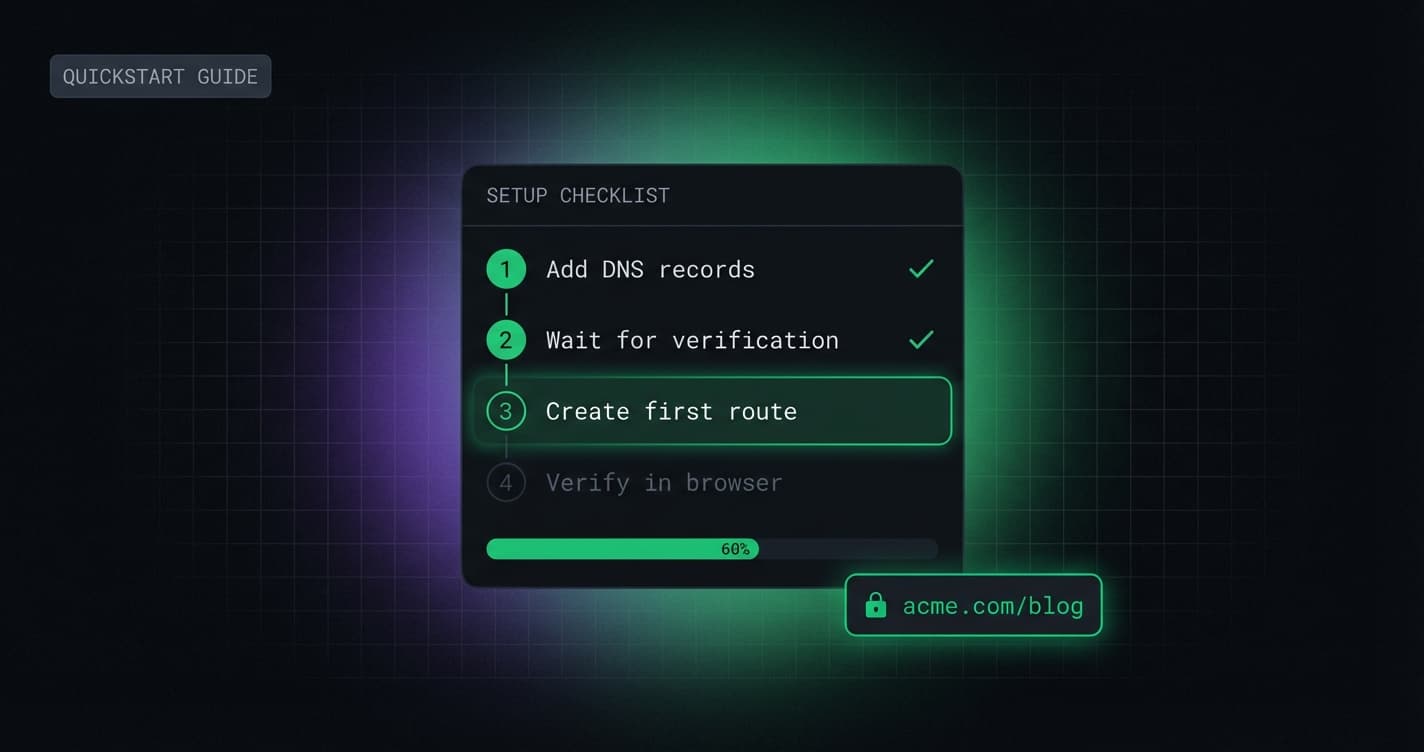
By the end of this guide you'll have a verified domain workspace in Furl with at least one active route. The whole thing takes about five minutes if your DNS provider is cooperative.
We'll use acme.com as the example domain throughout.
Step 1: Add your DNS records
After you add a domain in Furl, we show you exactly two records to create.
| Type | Name | Value |
|---|---|---|
| CNAME/ALIAS | @ | proxy.usefurl.com |
| CNAME | www | proxy.usefurl.com |
Log in to your DNS provider (Cloudflare, Namecheap, GoDaddy — it doesn't matter) and add both.
::callout[tip] If you're using Cloudflare DNS, make sure the orange cloud (proxy) is disabled on the CNAME record. Furl handles edge proxying itself via Cloudflare for SaaS — double-proxying breaks certificate provisioning. ::end
Verify from your terminal
# Should resolve via your DNS provider's apex CNAME flattening/ALIAS target
dig acme.com +short

# Should return proxy.usefurl.com.
dig CNAME www.acme.com +short
Step 2: Wait for verification
Furl checks your DNS every 5 minutes. You'll get an email the moment both records resolve correctly. Most providers propagate in under 2 minutes; worst case is around 30.
You can also check status manually: Sites → your domain → DNS status.
Step 3: Create your first route
Go to Sites → Routes → New Route and fill in:
- Path:
/blog - Destination:
yourblog.wordpress.com(your WordPress site) - Platform: WordPress (optional — enables automatic link rewriting)
Click Save. The route goes live globally in under 1 second.
How link rewriting works
When WordPress serves a page, it generates HTML with internal links pointing to yourblog.wordpress.com. Without rewriting, clicking any internal link would take your visitor off your domain.
Furl intercepts the response at the edge and rewrites all internal references:
Before: <a href="https://yourblog.wordpress.com/blog/my-post">Read more</a>
After:  <a href="https://acme.com/blog/my-post">Read more</a>
This also covers:
<link rel="canonical">— critical for SEO<meta property="og:url">— social share previews- Redirect
Location:headers
Step 4: Verify in browser
Open https://acme.com/blog in a private/incognito window. You should see your WordPress blog, served under your own domain, with a green lock.
::callout[warning]
If you see a 404 — check that your WordPress site (yourblog.wordpress.com) is publicly accessible. Open it directly. If it returns 404 there too, the issue is with WordPress's site visibility settings, not Furl.
::end
Next steps
- Add more routes — point
/landingto Webflow,/portfolioto Framer - Set up A/B testing — split
/blogbetween WordPress and Framer to test conversion - Review analytics — see real-time traffic across all your routes with no JS snippet required
Full documentation is at usefurl.com/docs.